
Searchable Storage Analytics
Understand the contents of a searchable storage
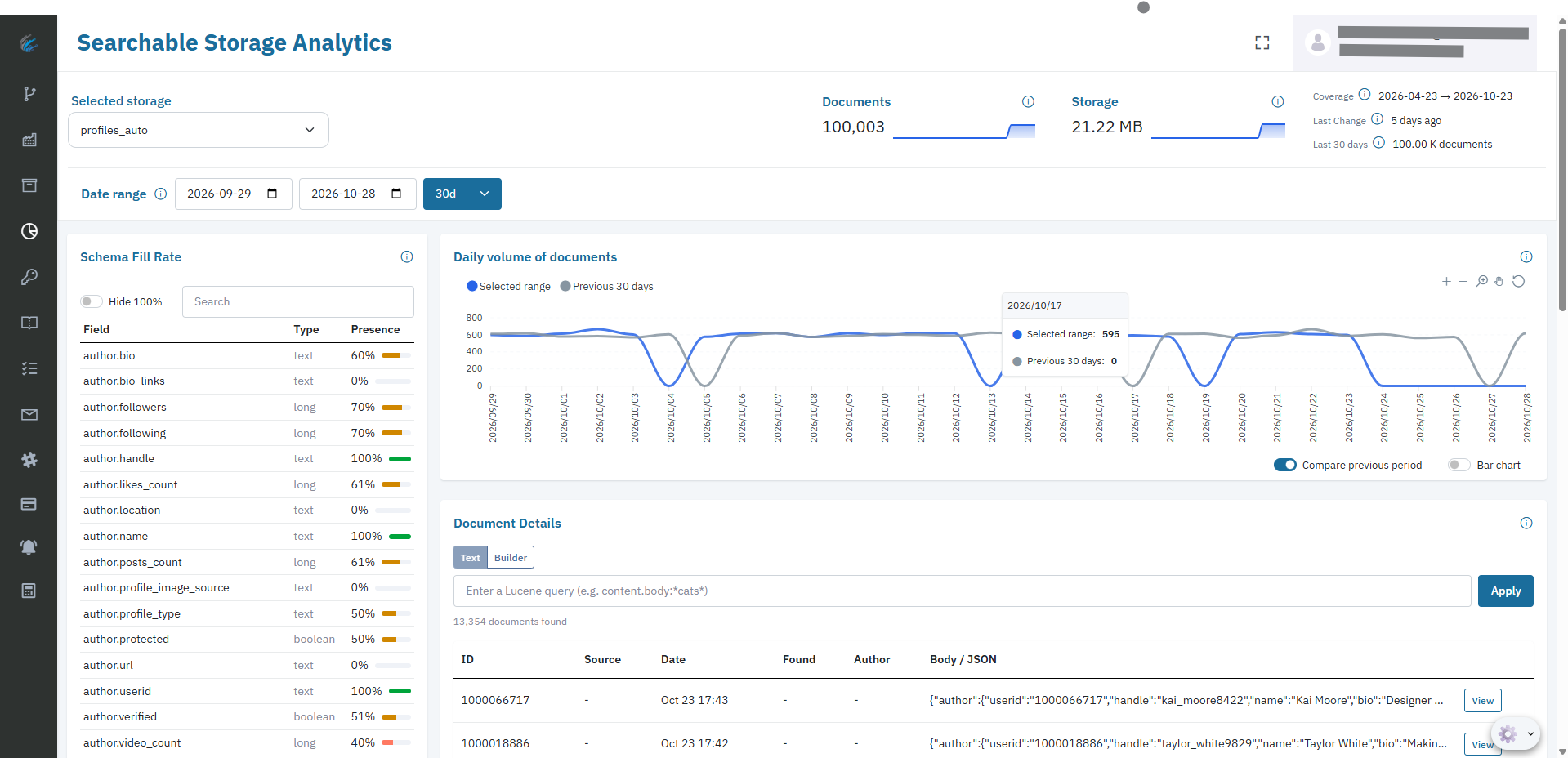
Searchable Storage Analytics helps you understand the contents of a searchable storage. Use it to check the number and size of stored documents, explore their dates and fields, compare daily document volumes, and inspect individual documents.
Why use Searchable Storage Analytics
Your pipelines can run without errors and still deliver data that isn't what you expect: a field stops arriving, a source sends less than usual, or documents land with older dates than you thought. Searchable Storage Analytics lets you see this directly, without exporting data or writing queries against the API.
Use it to:
- Check data quality proactively. Watch how many documents carry the fields your product depends on, such as location, author details, or image URLs, instead of finding gaps after a customer reports them.
- Spot changes early. If a field's fill rate drops from one period to the next, or daily volume falls below its usual level, you can see it and investigate before it affects downstream products.
- Understand what your sources deliver. With Auto Sources, Datastreamer selects the provider for each job. Analytics shows what actually arrived: field coverage, volume, and date coverage across your storage.
- Evaluate data before you commit. During a proof stage or when adding a new source, review coverage, completeness, and sample documents to confirm the data meets your requirements.
- Prepare data for AI and agents. Before connecting an AI assistant, agent, or MCP server to your storage, confirm that the fields and coverage it will rely on are there.
Common Usages
| Question | Where to look |
|---|---|
| Is a field I rely on consistently present? | Schema Fill Rate, with Hide 100% turned on |
| Did something change compared to last period? | Daily volume with Compare previous period, and fill rate across two date ranges |
| How fresh is my data? | Last Change and Last 30 days in the storage overview |
| How far back does my data go? | Coverage in the storage overview |
| What does a real document look like? | Document Details, then View |
Get started
- Sign in to the Datastreamer portal and open Searchable Storage Analytics from the navigation menu.
- Choose a searchable storage from Selected storage.
- Choose a Date range using a preset or the start and end date fields. The default is the last 7 days.
- Review the overview, schema fill rate, and daily volume. Use Document Details to search and inspect records.
The overview describes the selected storage as a whole. The date range controls the schema fill rate, daily volume, and document details. A query in Document Details filters that section and its matching-volume chart; it does not filter the overview, schema table, or main daily volume chart.
Storage overview

| Metric | What it shows |
|---|---|
| Documents | The total number of documents currently available in the selected storage. The small chart, when available, shows how the count changed over the last 30 days. The chart will not show for at least 3 days of data. |
| Storage | The current storage volume. The small chart, when available, shows how usage changed over the last 30 days. The chart will not show for at least 3 days of data. |
| Coverage | The earliest and latest document dates in the storage, based on doc_date. This is the span of document dates, not a promise that every date in between contains documents. |
| Last Change | The time elapsed since the latest document update, based on content.last_updated. Hover over the value to see the date and time in UTC when available. |
| Last 30 days | The number of documents added or modified in the last 30 days, based on content.last_updated. |
Select the information icon beside a metric for a short explanation. Overview values may be unavailable when the necessary data cannot be loaded. A history chart may be absent when recent history is not available.
Choose a date range

Select a preset of 7, 14, 30, 60, 90, 120, 150, or 180 days, or enter a custom start and end date. The range includes both dates and can cover a maximum of 180 calendar days. The start date must not be later than the end date. Dates are interpreted in UTC.
The date-filtered views use the document's doc_date, which can differ from the time the document was added or last updated. For example, a document updated today may have an older document date and fall outside a recent date range. If your coverage spans more than 180 days, inspect it in multiple ranges.
Changing the storage or date range clears the Document Details query and returns the results to the first page.
Explore schema fill rate
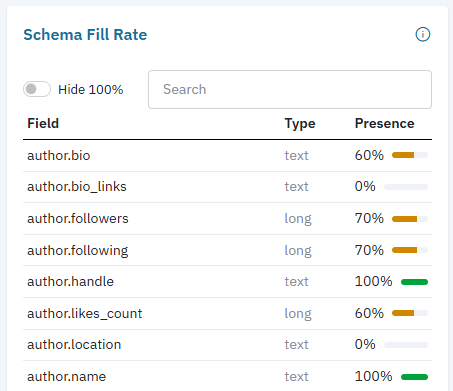
The Schema Fill Rate table lists the fields in the selected storage, their types, and their presence in documents in the selected date range. Presence is the percentage of matching documents in which a field has an indexed value, rounded to a whole percentage. For example, 60% means that approximately 60 out of 100 documents in the range have an indexed value for that field.
- Use Search to find a field or type in the table.
- Turn on Hide 100% to focus on fields that are not present in every document.
- Select a different date range to see how presence changes over time.
Presence describes whether a value is indexed; it does not establish that the value is accurate or complete. A field can be legitimate even if its presence is low, because different document types may contain different fields. Values shown as 100% are rounded.
If the storage has no date-mapped doc_date field, the page warns that it is showing field presence for the entire storage instead of the selected range. If there are no documents in the selected range, choose another range to calculate date-filtered presence.
Compare daily document volume
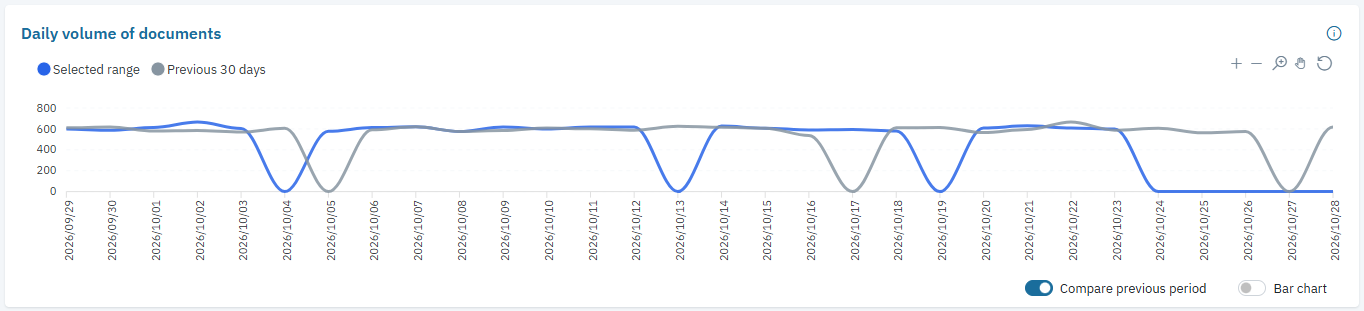
Daily volume of documents shows the number of documents for each day in the selected range, grouped by doc_date. Hover over the chart to inspect values for a day.
Compare previous period adds the immediately preceding period of the same length. For example, a seven-day selection is compared with the seven days immediately before it. Corresponding positions in the two periods appear together. Turn the switch off to show only the selected range. Use Bar chart to switch between bars and a line. The chart toolbar provides zoom, pan, and reset controls.
This chart groups documents by their document dates. It does not show daily storage size or necessarily the number ingested on each day. The comparison may include dates before the available coverage. If there are no documents in the selected range, the page asks you to choose a different range. A usable doc_date date field is required for the chart.
Search and inspect documents
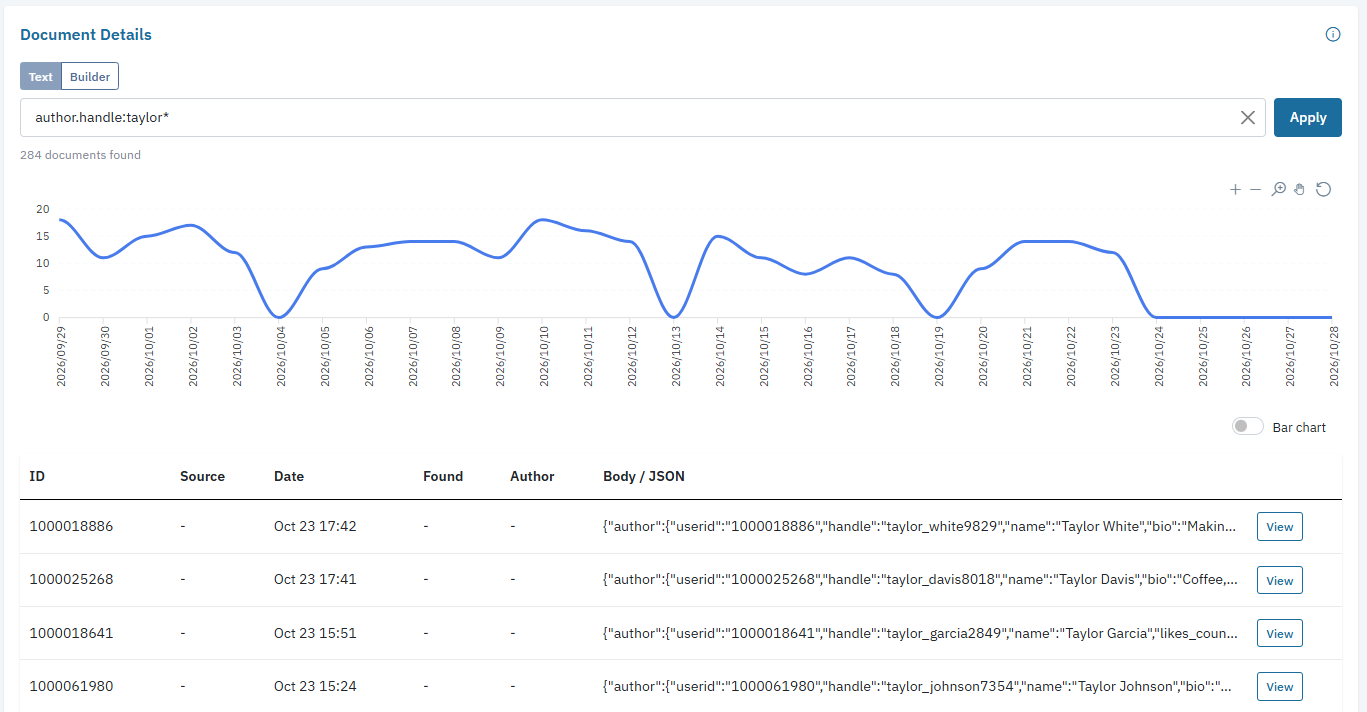
Document Details lists documents in the selected storage and date range. With the query empty, the table shows documents in that range. The number above the table is the total matching count.
Search with text
- In Text mode, enter a Lucene query in the search field.
- Select Apply or press Enter.
- Review the matching count and rows. When a query is applied and has matches, a separate chart shows matching documents by day. Use its Bar chart switch to change the display.
- Clear the query and select Apply to return to all documents in the selected range.
Use field names from the schema table when building a query. For example, if your storage contains these fields, author.verified:true searches for documents with a true value, and content.body:cats searches the body for the term cats. Combine conditions with AND or OR, such as content.body:cats OR content.body:dogs. Results depend on the fields and their mappings in your storage.
Use the query builder
Select Builder to construct a query with controls:
- Select + Condition, enter a field name and value, and choose an operator. The available operators include Matches, Less Than, Greater Than, Up To, and At Least.
- Add conditions and use AND or OR to combine them. Use + Group to group conditions and Not to invert a group.
- Select Apply to run the query. Switch to Text to inspect or edit the resulting Lucene expression.
Some text queries cannot be represented by the builder. Keep those queries in Text mode. If a query returns no results, check the field name, value, syntax, and selected date range.
Inspect results
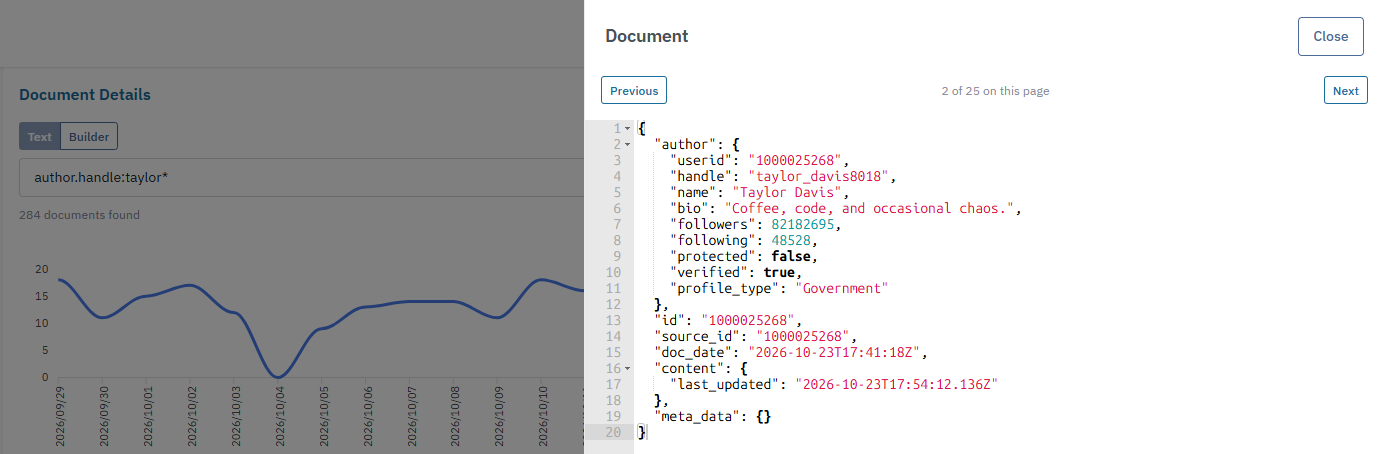
The table can show an ID, source, date, found value, author, and body or JSON. A dash means a displayed value is not available for that row. Select View or double-click a row to open the full document as read-only JSON. Use Previous and Next in the document panel to move among documents on the current page, then select Close to return to the table.
The table displays 25 documents per page. Use its page controls to move through results. The table provides access to at most the first 10,000 matching documents, even when the matching count is higher. Narrow the date range or query to inspect a smaller set.
Updated 16 minutes ago