
Talkwalker Widget
Ingest public Talkwalker widget data into your Datastreamer pipeline
Documentation AccuracyWe try to ensure every component documentation is as accurate as possible. However as we do not manage 3rd parties product features and documentation, some discrepancies could appear.
The Talkwalker Widget (provided by Talkwalker) provides access to content exposed through a public Talkwalker widget URL, enabling continuous ingestion of widget data into your Datastreamer pipeline.
New to Datastreamer? Start here.
Unify SchemaThis data source supports Unify Schema.
How To Use?
The component is powered by the Jobs System. When interacting with the component you define the values Datastreamer needs to fetch the JSON feed behind a public Talkwalker widget URL.
Widget Query
Filters
| Filter Name | Description |
|---|---|
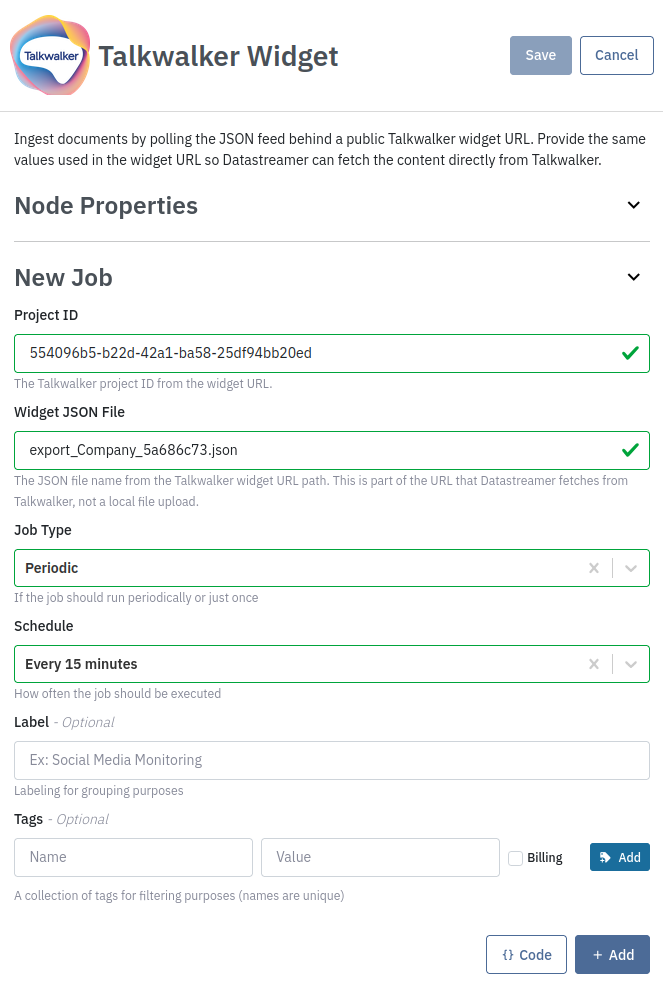
| project_id | The Talkwalker project ID from the widget URL. Required to identify which widget feed Datastreamer should access. |
| json_file | The JSON file name from the widget URL path. This is part of the Talkwalker widget URL, not a local file upload. |
| job_type | Defines whether the job should run once or periodically. |
| schedule | Execution frequency for periodic jobs. |
| label | Optional label for grouping purposes. |
| tags | Optional collection of tags for filtering purposes. |
Examples
Ingest a public Talkwalker widget feed
If your Talkwalker widget URL contains a project ID 554096b5-b22d-42a1-ba58-25df94bb20ed and a JSON file such as export_Company_5a686c73.json, use those values in the job configuration.
You also have the option to use the API. You can use the Code button to extract this example:
curl --location 'https://api.platform.datastreamer.io/api/pipelines/{PIPELINE_ID}/components/{COMPONENT_ID}/jobs?ready=true' \
      --header 'apikey: <your-api-key>' \
      --header 'Content-Type: application/json' \
      --data \
        '{
          "job_name": "{JOB_NAME}",
          "component_name": "talkwalker-widget-ingress",
          "data_source": "talkwalker_widget",
          "query": {
            "project_id": "652160bc-0b17-4cf5-bf4b-764ffa2ee42a",
            "json_file": "export_Company_d5vV7UyY.json"
          },
          "job_type": "periodic",
          "schedule": "0 0/15 * 1/1 * ? *"
        }'
For periodic collection, change "job_type" to "periodic" and include a "schedule" value.
For more details on creating data collection jobs, see Job Management.
Updated 2 months ago